
Signing in
The address to reach the Admin UI is typically the same as the SuperAdmin UI but with the path /admin appended instead of /superadmin. The default port is typically 6443. So, your Admin UI sign in URL will look something like this:
https://your-server.example.com:6443/adminThe login screen is where an Admin authenticates to a virtual site. It supports password sign in, and (optionally, based on license tier and software configuration) single sign on through an OIDC provider, and multi factor authentication.
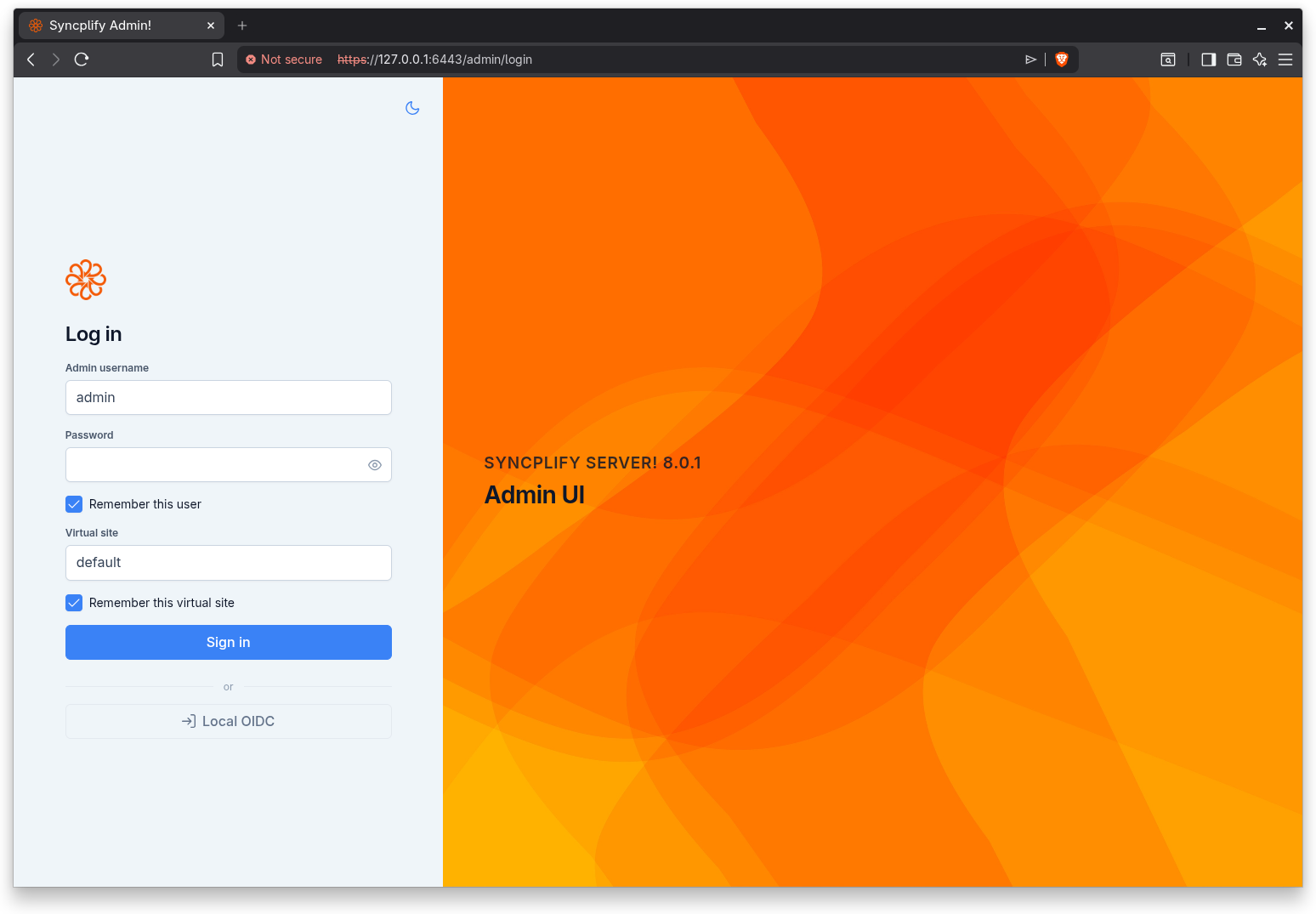
Password sign in
Enter your credentials and the virtual site you want to manage:
- Admin username: your Admin account name.
- Password: your account password.
- Virtual site: the identifier of the site to manage. It defaults to
default.
Two convenience options let the browser remember your entries on this device:
- Remember this user keeps the username filled in next time.
- Remember this virtual site keeps the virtual site filled in next time.
Select Sign in to authenticate.
When you arrive from the SuperAdmin UI through a "Manage" action, the target virtual site is passed in the link and always takes precedence over any remembered value.
Multi factor authentication
If your account requires a one time code, after the password step the screen asks for the six digit code from your authenticator app.
Type the code; it submits automatically once all six digits are entered. Use Back to return to the credentials step if needed.
Single sign on
When the virtual site has one or more OIDC providers configured for administrator sign in, a button appears for each provider below the credentials form, separated by an "or" divider.
Selecting a provider redirects you to that identity provider. After you authenticate there, the provider returns you to the console, which finalizes the session and lands you on the dashboard. While the exchange completes, a "Signing you in" overlay is shown.
NOTE
The providers offered here are configured by the SuperAdmin in the virtual site editor. The Single Sign On (OIDC) guide explains the whole topic in depth, including Google and Microsoft Entra ID setup.
Passkey sign in
If you have enrolled a passkey for your Admin account (in Settings under Security), a "Sign in with a passkey" button appears below the credentials form. Admin passkeys are scoped to one virtual site, so the Virtual site field must be filled in before the button becomes active. Select it and confirm with your device screen lock or hardware security key; no username or password is typed, and no one time code is asked, because unlocking the passkey already counts as a second factor. The button appears only on browsers that support passkeys. See the Passkeys (WebAuthn) guide for details, including the host name binding rules.
Forced password change
If your account is flagged to change its password, the screen presents a password change step right after you authenticate. Enter and confirm a new password to continue. The new password must satisfy the password policy enforced by the virtual site.