
Signing in
The sign in screen is the first thing you see when you open the WebClient without an active session. It supports signing in with a username and password, with single sign on, and with two factor authentication when your account requires it.
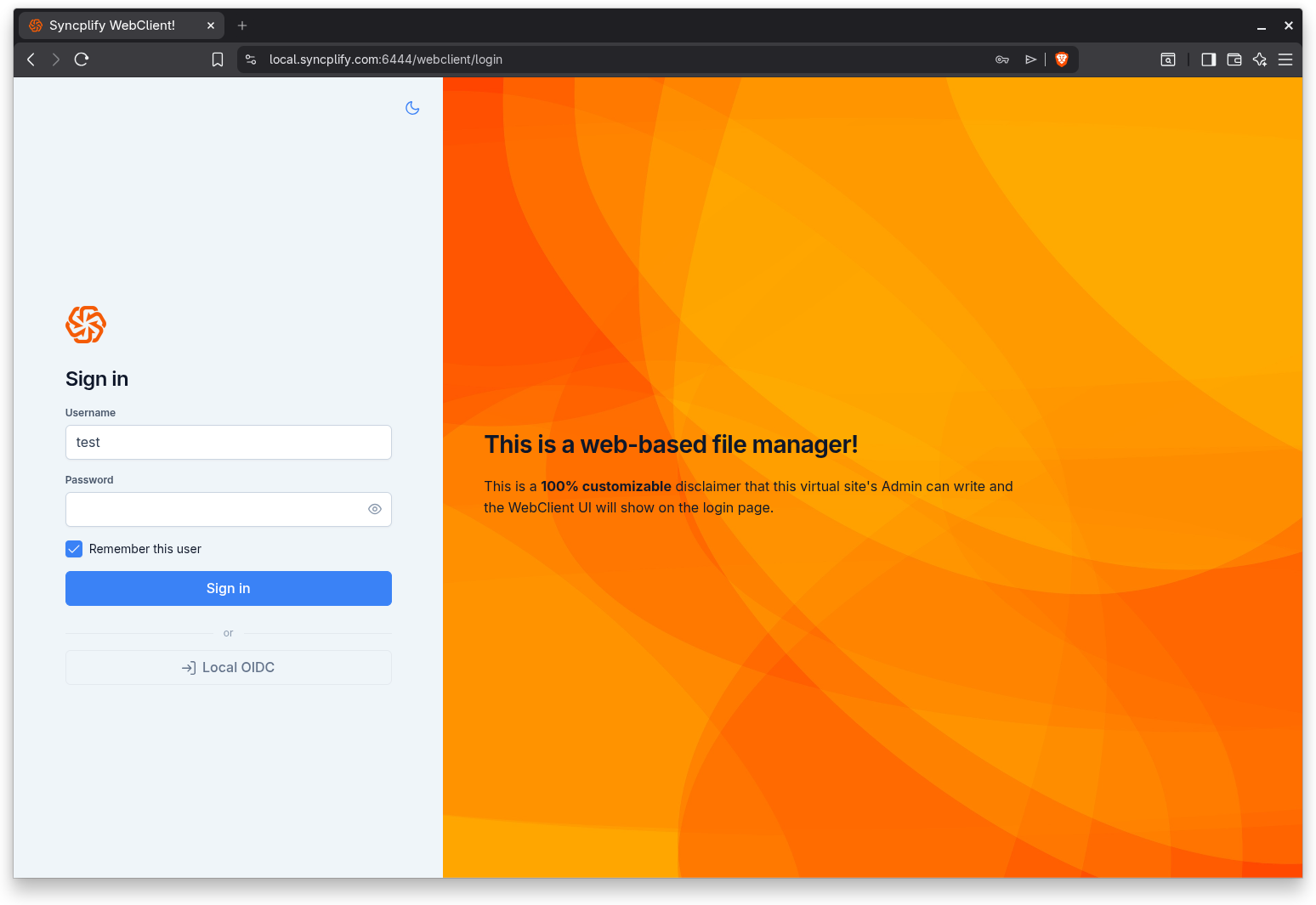
Signing in with a username and password
- Enter your username.
- Enter your password. Use the eye icon inside the field to reveal what you typed if you want to check it.
- Optionally turn on Remember this user, so your username is filled in automatically next time. This remembers the username only, never the password.
- Select Sign in.
If your account requires you to change your password, the WebClient shows a Change your password step right after you authenticate. This happens when an administrator has asked for a change, and also when your password has outlived the maximum age set for your account, in which case the message says that it has expired. Enter a new password, confirm it, and save it to continue. You will not be able to reach your files until the new password is set. Depending on how your administrator configured password expiry, SFTP and FTP logins with an expired password may be refused until you have changed it here.
Signing in with single sign on
If the administrator has configured one or more identity providers, you will see them listed below the username and password form, under a small "or" divider. Select the provider you want to use. The WebClient sends you to that provider to authenticate, then brings you back and finishes signing you in automatically. While it completes the exchange, a brief "Signing you in" message is shown.
NOTE
For administrators: providers are configured in the Admin UI, and the Single Sign On (OIDC) guide covers the whole topic, including Google and Microsoft Entra ID setup.
Signing in with a passkey
If you have enrolled a passkey for your account (in Settings under Authentication), a "Sign in with a passkey" button appears below the username and password form. Select it, pick your passkey from the browser prompt, and confirm with your device screen lock (PIN, fingerprint, or face) or your hardware security key. No username, password, or one time code is typed: unlocking the passkey already counts as a second factor. The button appears only on browsers that support passkeys; see the Passkeys (WebAuthn) guide for details.
Two factor authentication
If your account is protected by an authenticator app, the WebClient asks for a one time code after your password is accepted.
- Open your authenticator app and read the current six digit code.
- Type the code into the field. The form submits automatically as soon as all six digits are entered, so there is no separate button to press.
- If the code is wrong, the field clears so you can try again.
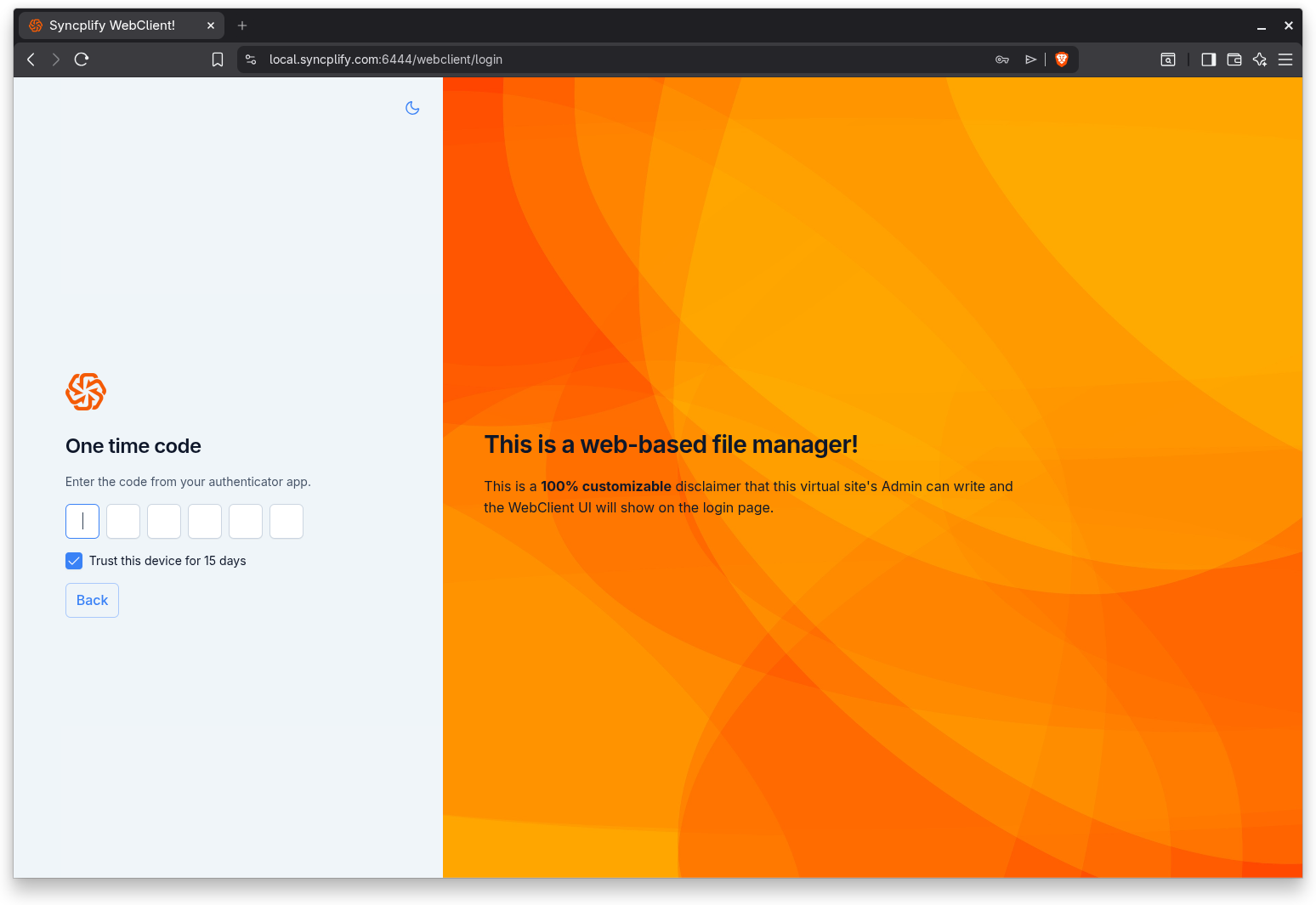
Trust this device
When the administrator allows it, the one time code step also offers a "Trust this device" option, with the number of days the trust lasts. Turn it on if you are on a private, trusted computer. For that period, this device will not ask you for a one time code again on future sign ins. Avoid trusting shared or public computers.