
R2FS!
The R2FS! page configures the identity keys, the encryption requirement, and the network allow list for remote R2FS! storage nodes. Together they control which remote nodes can authenticate to this server, how their connections are protected, and from which network sources they may connect.
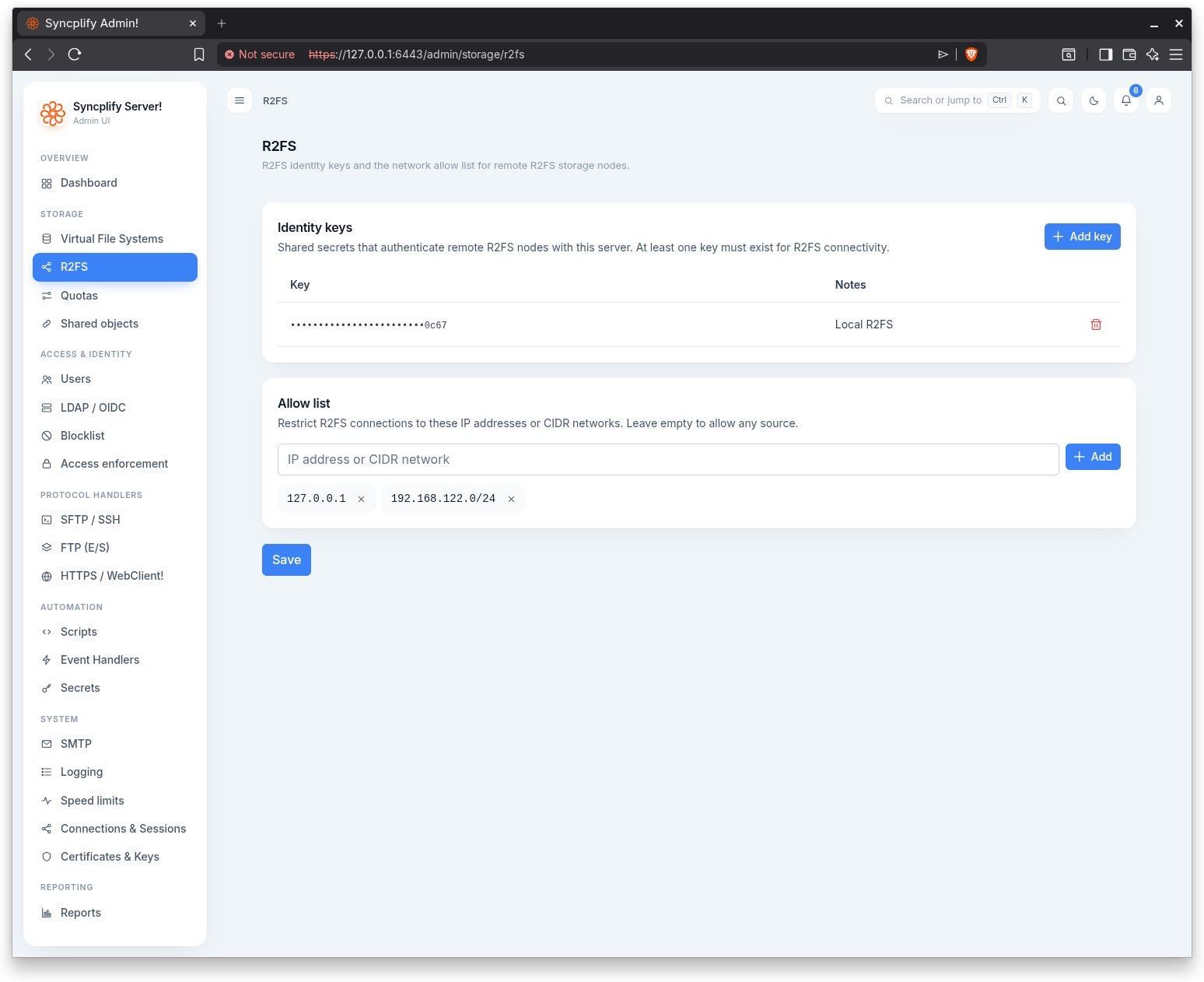
Identity keys
Identity keys are shared secrets that authenticate remote R2FS! nodes with this server. At least one key must exist for R2FS! connectivity.
The keys table shows each key (masked, with only the last characters visible) and its Notes. When the table is empty it reads "No identity keys yet."
Adding a key
Click Add key to open a dialog. It has two fields:
- Key: the shared secret. It is entered as a masked value you can reveal.
- Notes: a free text description to help you recognize the key later.
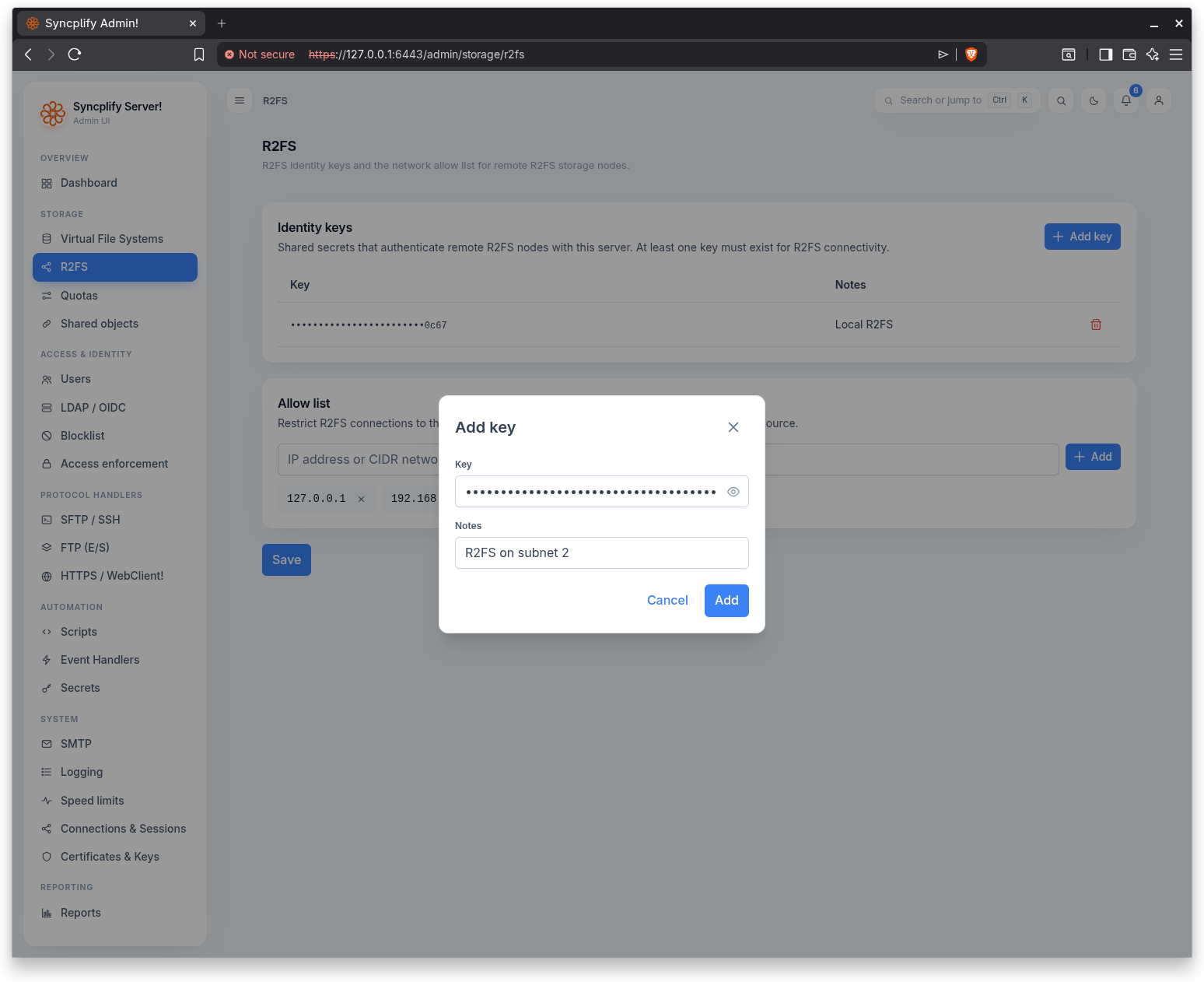
The Add action stays disabled until a key value is entered. Adding a key stages it; remember to save the page to persist your changes.
Deleting a key
Use the delete action on a key row. A confirmation dialog asks "Delete this R2FS! identity key?" before the key is removed. As with adding, deletions are staged until you save.
Encryption
R2FS! v2.2 and newer encrypt every connection to this server and verify both ends of it mutually, using the identity key you already configure and nothing else. There is no certificate to issue, copy between machines, or renew: the encryption keys are generated in memory each time a service starts, and the identity key remains the whole of the trust. Nodes running v2.2 or newer do this automatically, whether or not the setting below is enabled.
Older nodes cannot do any of it. R2FS! v2.1 and older connect without encryption, and the server keeps serving them through a compatibility layer so that upgrading does not cut off your whole fleet at once.
Require R2FS! v2.2+ mutually verified encryption
Leave this unchecked while any node older than v2.2 is still in service. Enable it once every node has been upgraded: from then on the server refuses any node that connects without encryption.
Virtual sites created from version 8.3.1 on start with this setting enabled, since a new site has no older nodes to accommodate. Sites created earlier keep it disabled until you enable it. While it is disabled, every node that attaches without encryption also raises a notification in this Admin UI (once a day per node, titled R2FS agent attached without encryption) naming the node, its version and the virtual file system it serves, so you know which nodes still need the upgrade and when it is safe to enable the setting.
Enabling it takes effect immediately, on new connections, without restarting anything. Nodes that are already attached without encryption keep their current connection and are refused the next time they reconnect, so a fleet converges rather than dropping all at once. Disabling it takes effect just as quickly.
TIP
Finding the nodes that still need upgrading. While the compatibility layer is on, the server log records every node as it attaches and says whether the connection was encrypted. A node that attaches without encryption is logged as a warning naming the node and the virtual file system it serves, so you can search the log for those warnings to see exactly which nodes will stop connecting if you enable this setting.
WARNING
Encryption is not in force until this setting is enabled. While the compatibility layer is on, an attacker positioned on the network between this server and a node can choose the unencrypted transport, so the site is no better protected than it was before. The nodes that have been upgraded genuinely are encrypted in the meantime, but the protection applies to the site as a whole only once this setting is enabled.
Performance
Two settings tune the data links your remote R2FS! nodes open toward this server.
Parallel data link cap
The most parallel data links per virtual file system and node this server tells R2FS! nodes it can route. 0 keeps the default of 8, and 1 restricts every node to a single link. It takes effect on newly opened links, with no restart. Parallel links require R2FS! v2.2 or newer nodes, and each node chooses its own link count per virtual file system up to this cap.
Node restart grace
How long, in seconds, file operations wait for an R2FS! node to connect again after its last link drops, before they fail. It covers the short restart a node performs when it updates itself (see below), so SFTP, FTPS and HTTP clients see a pause instead of an error. Operations against a node that never connected, or that has been gone longer than this, fail at once. 0 restores the default of 30 seconds, 300 is the ceiling. It takes effect on the next operation, with no restart. A virtual file system served by more than one node never waits at all: the operation simply lands on another node.
Keeping R2FS! nodes current
R2FS! v3.0.0 and newer nodes keep themselves current. Each node checks Syncplify's signed release channel once a day and shows the newest published version on its own Updates page, where its update policy is set: notify only (the default, nothing is installed until an operator applies it) or apply automatically when idle, optionally only inside a daily time window. Manual Apply when idle and Apply now are always available.
A node installs an update only when it is idle: no transfer is open over any of its links and a full minute has passed without operations. Open transfers are never cut. The node then stops, swaps its binary (keeping the previous one as a rollback slot), restarts, and rolls back on its own if the new version fails its health check. During that restart, which takes a few seconds, this server's node restart grace above holds file operations until the node is back, so users notice nothing; a virtual file system served by two or more nodes does not even pause.
IMPORTANT
Updates require an active maintenance plan. An R2FS! node whose license has expired, or whose maintenance plan has expired, is not eligible to receive or install updates. It still learns that a newer version exists and downloads nothing; its Updates page and dashboard explain why and link to the Syncplify Customer Portal at https://syngo.to/cc to renew or extend maintenance. A valid trial license is eligible while the trial lasts. Software that stays current stays secure.
Node health
The Nodes panel at the top of the page is the live view of the R2FS! nodes linked to this site: one row per node, and in a high availability cluster one row per node and server node, because a node links to every server node separately. Each row names the node (its host name, and the version it runs), the notes of the identity key it was admitted with, whether its links are encrypted, the virtual file systems it currently serves, and how many of its virtual file systems cannot reach their storage. The panel refreshes itself every thirty seconds while the page is open.
Storage problems
R2FS! v3.1.0 and newer nodes prove the storage behind every virtual file system before presenting it, keep probing it while they serve it, and tell every server node which of their virtual file systems cannot reach their storage. The Storage problems table lists those, with:
- State: Withheld means the node is not presenting the virtual file system at all, because its storage could not be built or proven. Users whose storage is on it are told their storage is unreachable, unless another R2FS! node serves the same virtual file system, in which case the row says served by another node and users notice nothing. Degraded means the node still serves the virtual file system but its last periodic probe failed; the link is kept, because a passing failure must not become an outage, and every operation heals the backend the moment the storage answers.
- Phase: where it failed: configuration, backend, connection, credentials, root path, or link.
- Reason: the storage's own answer, on one line, with every secret of the node's configuration removed by the node before it is sent.
- Since, Next attempt and Attempts: when the failure began, when the node tries again, and how many times it has tried. A withheld storage is retried half a minute after the first failure, doubling up to five minutes; a degraded one is probed again every minute.
The node retries on its own, so a NAS that boots after the node, or a bucket endpoint that flaps, comes back without anyone restarting the node or re saving the virtual file system. Nodes report every five minutes; a node that has been silent for fifteen minutes leaves the panel. Nodes older than v3.1.0 do not report and show does not report. A virtual file system the node has that this site does not configure is shown, marked not configured on this site, and never raises a notification.
Notifications
Each storage episode raises one notification in this Admin UI, converged across the nodes of a cluster, so the same problem seen from three server nodes is one record:
- R2FS! storage unreachable (an error): a virtual file system is withheld and no other node serves it.
- R2FS! storage unreachable on one node (a warning): withheld on one node while another still serves it; redundancy is reduced, users are not affected.
- R2FS! storage degraded (a warning): the node keeps serving it, the last probe failed.
- R2FS! storage reachable again (information): the episode ended.
What users see
While a virtual file system is withheld everywhere, an SFTP client receives the failure status with the message your storage is unreachable right now; please try again later or ask your server administrator (clients such as WinSCP, FileZilla and Cyberduck show it; OpenSSH's own sftp prints its usual Failure), an FTP client receives a 550 reply with the same sentence, and the WebClient shows it as a notice on a 503 answer. Signing in is never refused for it: the storage exists and is down, and the first operation is where the truth is.
The Virtual File Systems list carries a Status column for R2FS! rows built from the same view.
Allow list
The allow list restricts R2FS! connections to specific IP addresses or CIDR networks. Leave it empty to allow connections from any source.
Entries are managed with the address and CIDR editor. Each entry can be an individual IP address or a CIDR network range.
Saving
Changes to the identity keys, the encryption requirement, and the allow list are applied together when you click Save. If you leave the page without saving, staged additions and deletions are discarded.