
Settings
The Settings page manages your own Admin account, not the virtual site. Open it from Settings in the account menu. It is organized into two tabs: Account and Security. The page subtitle shows the account you are signed in as.
Account
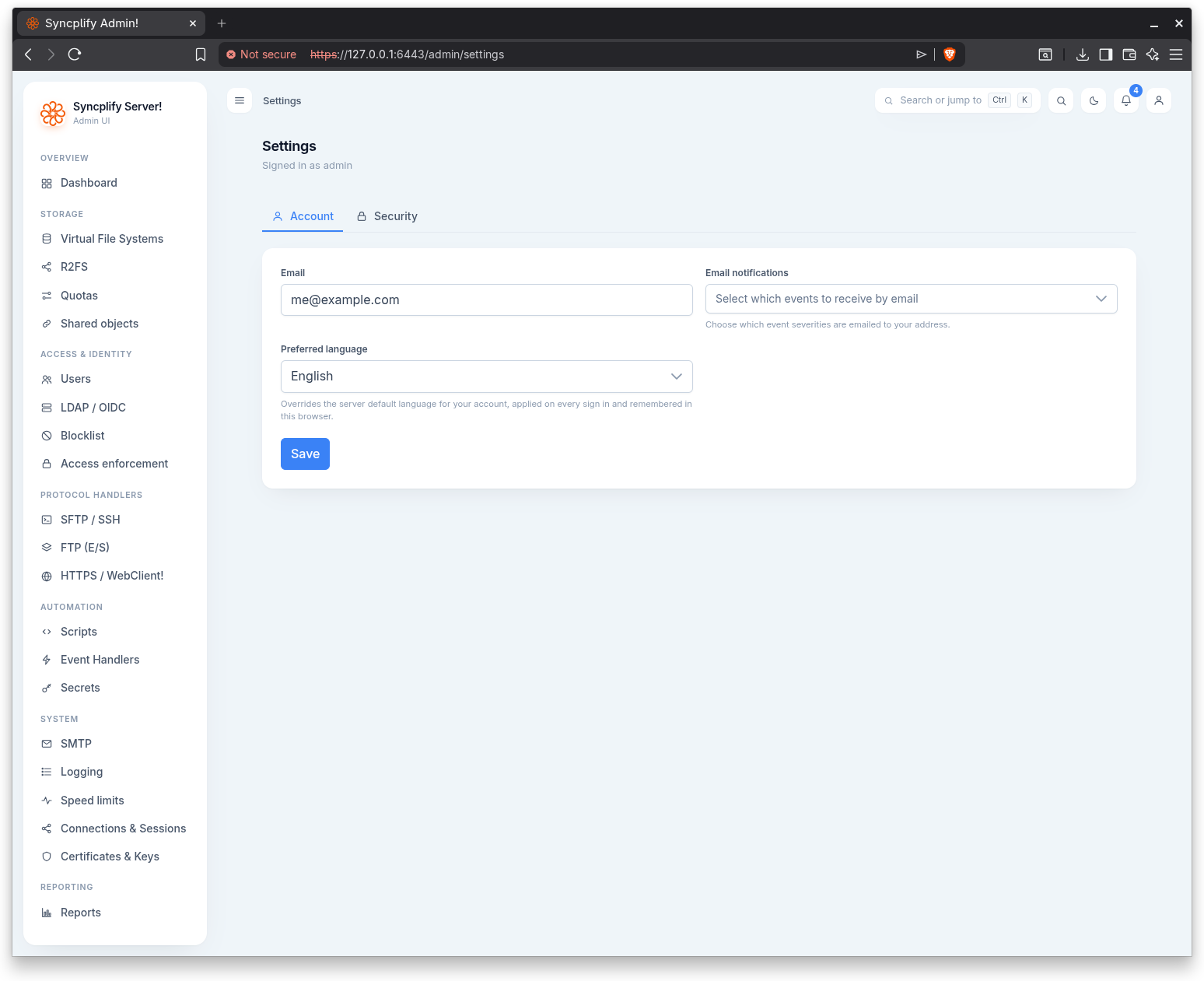
The Account tab holds your personal preferences:
- Email: your address, used for emailed notifications.
- Email notifications: which event severities (Information, Warning, Error) are emailed to your address.
- Preferred language: overrides the server default language for your account. It is applied on every sign in and remembered in this browser. Choosing a language applies and saves it immediately.
Select Save to store the email and notification choices.
Security
The Security tab lets you change your own password.
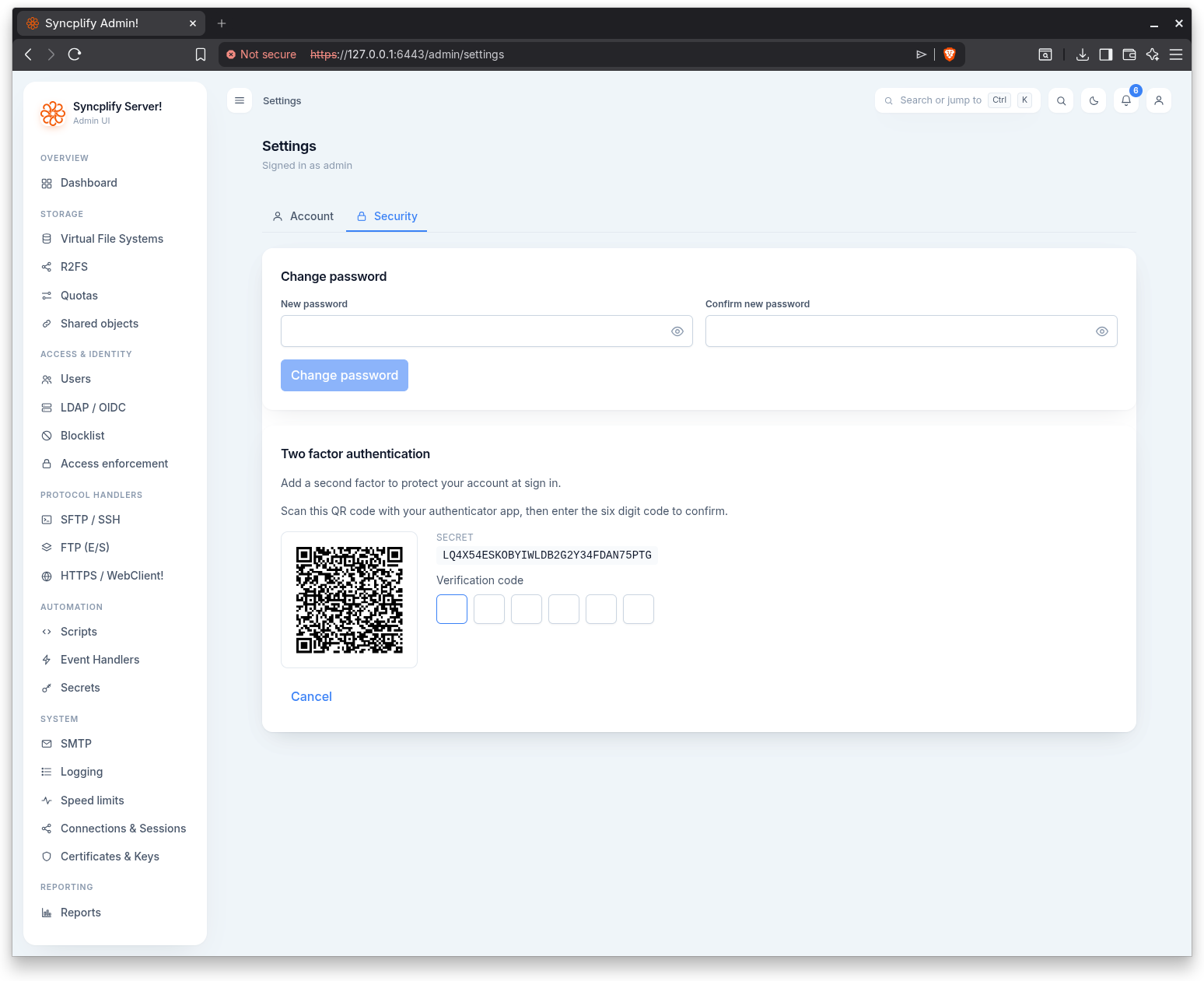
Enter and confirm a new password. The two entries must match before the change can be submitted. Select Change password to apply it.
Passkeys
The Security tab also manages your passkeys, which let you sign into the Admin UI without typing a password, using your device screen lock or a hardware security key. Enter an optional name, select Add passkey, and follow the browser prompts. The list shows each passkey with its creation date, last used time, and use count; passkeys can be renamed and deleted at any time, and each account can hold up to 10. A passkey is bound to the exact host name it was created on and to this virtual site; signing in with it never asks for a one time code, because unlocking the passkey already counts as a second factor. The section is hidden on browsers that do not support passkeys. See the Passkeys (WebAuthn) guide for the full picture.