
Settings
Settings is your own SuperAdmin account, reached from Settings in the account menu in the top right. It has three tabs: Account, Security, and Allow list.
Account
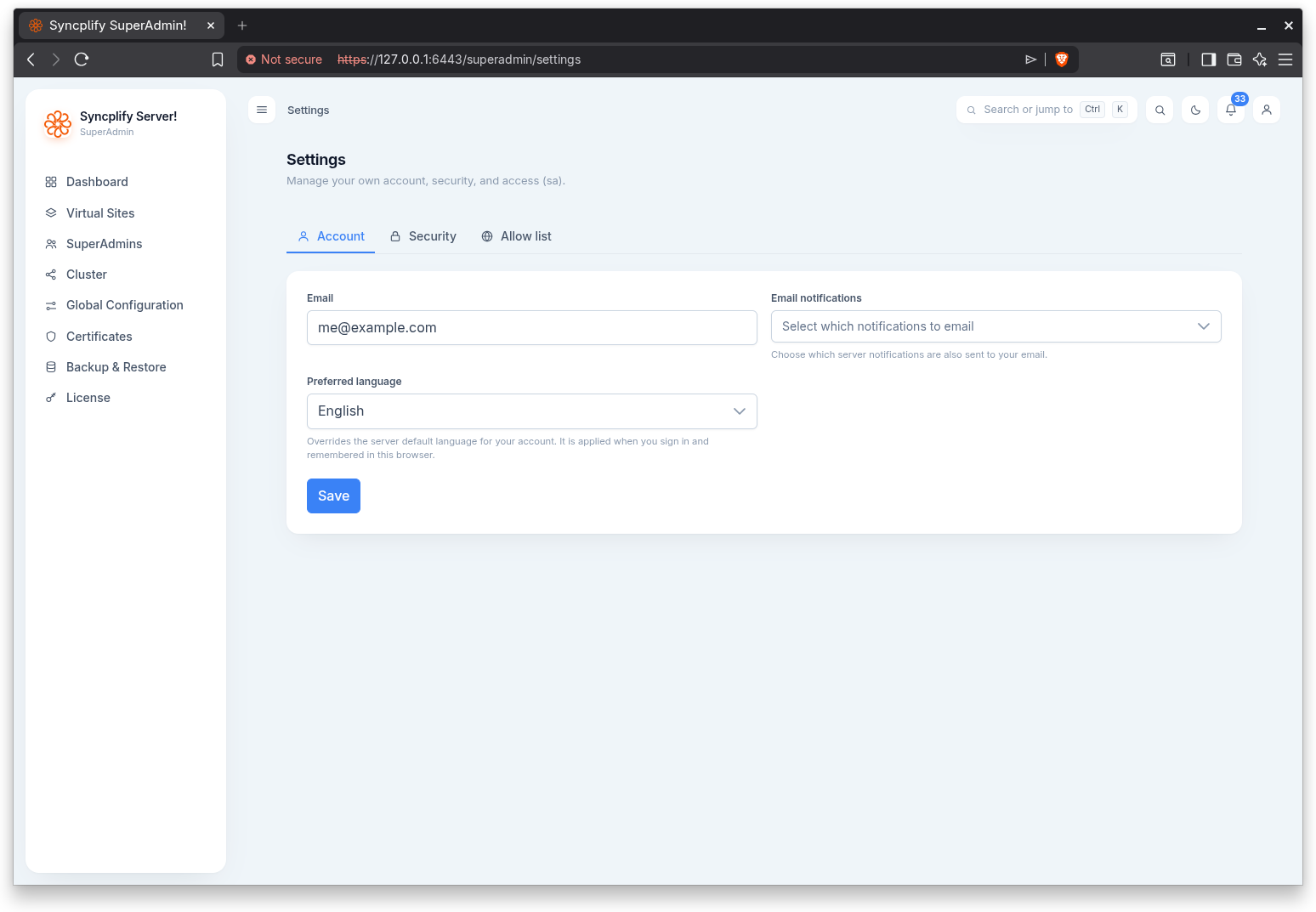
- Email: your account email address.
- Email notifications: which notification severities (Information, Warning, Error) are also sent to you by email.
- Preferred language: your own override of the server default language. It is applied when you sign in and remembered in this browser; changing it takes effect immediately on this page.
Select Save to apply the email and notification changes; the language change saves as soon as you pick it.
Security
The Security tab covers your password and two factor authentication.
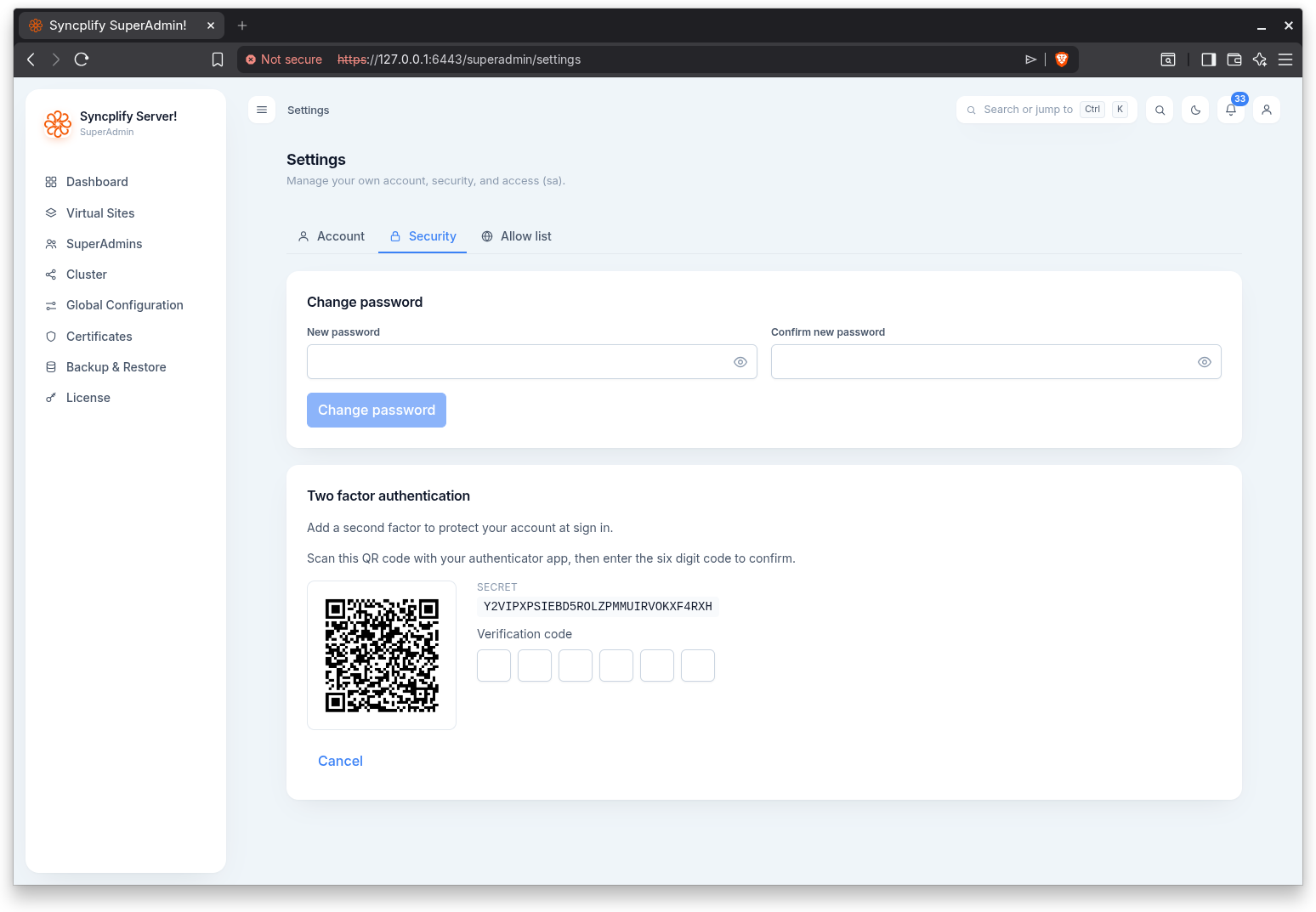
- Change password: enter and confirm a new password, then save. The confirmation field flags a mismatch.
- Two factor authentication: when it is off, Enable two factor shows a QR code and the secret; scan it with your authenticator app and enter the six digit code to confirm (the code is verified automatically once all six digits are entered). When it is on, Disable two factor removes it after a confirmation.
- Passkeys: enroll passkeys to sign into the SuperAdmin UI without typing a password, using your device screen lock or a hardware security key. Enter an optional name, select Add passkey, and follow the browser prompts. Passkeys can be renamed and deleted, each account can hold up to 10, and each one is bound to the exact host name it was created on. Signing in with a passkey never asks for a one time code, because unlocking the passkey already counts as a second factor. See the Passkeys (WebAuthn) guide for the full picture.
Allow list
The Allow list tab sets the IP addresses or networks you may sign in from. When set, you may sign in only from these addresses or networks, so take care not to lock yourself out.